# FAQ
How can I make the percentage labels in the top left corner stay? [#how-can-i-make-the-percentage-labels-in-the-top-left-corner-stay]
In earlier versions, the top-left percentage labels were on by default, but due to UX decisions, they are now
only enabled on mobile devices. If you want to bring back the old behavior, there is the flag
[`DASHDOT_ALWAYS_SHOW_PERCENTAGES`](./configuration/basic#dashdot_always_show_percentages) for that.
The network information can not be read correctly - what should I do? [#the-network-information-can-not-be-read-correctly---what-should-i-do]
First of all, if you are running docker, make sure that you are passing the `-v /:/mnt/host:ro`
bind mount. If you have done so, and it still does not work, please do the following:
> Check your logs for a message like `Using network interface "xxxxx"`.
**Is this the correct network interface?** If not, please find out your default interface, and pass the name
manually, using the [`DASHDOT_USE_NETWORK_INTERFACE`](./configuration/network#dashdot_use_network_interface) flag.
If it **is** the correct network interface, please open a GitHub issue with the relevant log outputs and information.
**Is there no message like this?** If so, please check your log for any errors and open a new issue on GitHub with
that information.
Can you use dash. without mounting the whole host drive? [#can-you-use-dash-without-mounting-the-whole-host-drive]
Yes, you can - the mount is only needed to make it easier for the user, but you can
manually mount the relevant parts into the container as well.
For this you need to use the following volume mounts:
* `/etc/os-release:/mnt/host/etc/os-release:ro` for reading the OS version of the host
* `/proc/1/ns/net:/mnt/host/proc/1/ns/net:ro` for reading the Network usage of the host
* alternatively, you can just bind the container to the host network using `--net=host`,
but this is not recommended, because it messes with Dockers internal networking
* `/mnt:/mnt/host/mnt:ro` and `/media:/mnt/host/media:ro` for reading the usage stats of all drives
* keep in mind that this covers only the most basic mount paths of linux. if your system uses other mount paths,
you will need to manually add them to the list of volumes, following the pattern `/xxx:/mnt/host/xxx:ro`. To
check where all your mounts are on your system, you can use the command `df` and run it in a shell.
Answer not found? [#answer-not-found]
If you think there is no answer for your question and it is actually a bug, or a missing feature,
please create a [new Issue on GitHub](https://github.com/MauriceNino/dashdot/issues).
If you need further help, please [join our Discord](https://discord.gg/3teHFBNQ9W) - we are happy to answer any questions.
# Documentation
What is Dash.? [#what-is-dash]
At its core, Dashdot is a monitoring tool that gathers system information and presents
it through a beautiful, reactive web interface.
Whether you are running a small Raspberry Pi homelab or a beefy dedicated root server,
Dashdot gives you an instant overview of:
* **CPU:** Usage, model, and core-specific performance.
* **Memory:** Real-time RAM utilization.
* **Storage:** Disk space across all mounted drives.
* **Network:** Up/Down speeds and total data transferred.
* **GPU:** Support for monitoring modern graphics cards (only NVIDIA via Docker).
Configuration [#configuration]
Dashdot is designed to be highly plug-and-play, but it offers extensive customization via **Environment Variables**.
These allow you to tweak the behavior and appearance without touching the source code.
You can find more details on how to set these variables in our [Configuration Section](docs/configuration).
Useful Links [#useful-links]
Need more info or want to see it in action? Check out these resources:
* **[Live Demo](https://dash.mauz.dev/)** - See a real-world instance of Dashdot running.
* **[Frequently Asked Questions](docs/faq)** - Common troubleshooting steps and "how-to" guides.
* **[GitHub Repository](https://github.com/MauriceNino/dashdot)** - View the source code, report bugs, or contribute.
Get in Touch [#get-in-touch]
Have questions that aren't answered in the docs? Join our community!
* **[Discord Server](https://discord.gg/S7YmU3B)** - Join our Discord for support, to share your setup,
or to discuss new features with the developers and other users.
# Basic
DASHDOT_WIDGET_LIST [#dashdot_widget_list]
Selects which widgets to show on the dashboard.
The available options are: `os`, `cpu`, `storage`, `ram`, `network`, `gpu`.
* type: `string (comma separated list)`
* default: `os,cpu,storage,ram,network`
| `os,cpu,storage,ram,network` | `ram,cpu,storage,network` |
| ----------------------------------------------------------------------- | -------------------------------------------------------------------------- |
|  |
|  |
DASHDOT_PORT [#dashdot_port]
The port where the express backend is running (the backend serves the frontend, so it is the same port for both).
* type: `number`
* default: `3001`
DASHDOT_ROUTING_PATH [#dashdot_routing_path]
The path where dash. is being served. This is useful if you want to run dash. behind a reverse proxy on a sub-path
(e.g `https://example.com/dashdot` would need a value of `/dashdot`).
* type: `string`
* default: `/`
DASHDOT_PAGE_TITLE [#dashdot_page_title]
If you want to show a custom string in the browser page title.
* type: `string`
* default: `dash.`
DASHDOT_DISABLE_INTEGRATIONS [#dashdot_disable_integrations]
Disables support for integrations. This does two things: disable CORS and disable open API endpoints.
* type: `boolean`
* default: `false`
DASHDOT_DISABLE_BACKGROUND_STATS_COLLECTION [#dashdot_disable_background_stats_collection]
Disables background collection of metrics.
* type: `boolean`
* default: `false`
DASHDOT_SHOW_DASH_VERSION [#dashdot_show_dash_version]
If you want to show the version number of your dash. instance on the bottom right of the page, or alternatively on the GitHub icon (hover).
The available options are: `bottom_right`, `icon_hover` and `none`.
* type: `string`
* default: `icon_hover`
| `bottom_right` | `icon_hover` |
| ------------------------------------------------------------------------ | -------------------------------------------------------------------------------- |
|
|
DASHDOT_PORT [#dashdot_port]
The port where the express backend is running (the backend serves the frontend, so it is the same port for both).
* type: `number`
* default: `3001`
DASHDOT_ROUTING_PATH [#dashdot_routing_path]
The path where dash. is being served. This is useful if you want to run dash. behind a reverse proxy on a sub-path
(e.g `https://example.com/dashdot` would need a value of `/dashdot`).
* type: `string`
* default: `/`
DASHDOT_PAGE_TITLE [#dashdot_page_title]
If you want to show a custom string in the browser page title.
* type: `string`
* default: `dash.`
DASHDOT_DISABLE_INTEGRATIONS [#dashdot_disable_integrations]
Disables support for integrations. This does two things: disable CORS and disable open API endpoints.
* type: `boolean`
* default: `false`
DASHDOT_DISABLE_BACKGROUND_STATS_COLLECTION [#dashdot_disable_background_stats_collection]
Disables background collection of metrics.
* type: `boolean`
* default: `false`
DASHDOT_SHOW_DASH_VERSION [#dashdot_show_dash_version]
If you want to show the version number of your dash. instance on the bottom right of the page, or alternatively on the GitHub icon (hover).
The available options are: `bottom_right`, `icon_hover` and `none`.
* type: `string`
* default: `icon_hover`
| `bottom_right` | `icon_hover` |
| ------------------------------------------------------------------------ | -------------------------------------------------------------------------------- |
|  |
|  |
DASHDOT_USE_IMPERIAL [#dashdot_use_imperial]
Shows any units in the imperial system, instead of the default metric.
* type: `boolean`
* default: `false`
| `false` | `true` |
| ------------------------------------------------------------------------------ | --------------------------------------------------------------------------------- |
|
|
DASHDOT_USE_IMPERIAL [#dashdot_use_imperial]
Shows any units in the imperial system, instead of the default metric.
* type: `boolean`
* default: `false`
| `false` | `true` |
| ------------------------------------------------------------------------------ | --------------------------------------------------------------------------------- |
|  |
|  |
DASHDOT_ALWAYS_SHOW_PERCENTAGES [#dashdot_always_show_percentages]
To always show the current percentage of each graph in the top-left corner. Without enabling this,
they will only be shown on lower resolution devices (mobile phones).
* type: `boolean`
* default: `false`
| `false` | `true` |
| ---------------------------------------------------------------------------- | ------------------------------------------------------------------------ |
|
|
DASHDOT_ALWAYS_SHOW_PERCENTAGES [#dashdot_always_show_percentages]
To always show the current percentage of each graph in the top-left corner. Without enabling this,
they will only be shown on lower resolution devices (mobile phones).
* type: `boolean`
* default: `false`
| `false` | `true` |
| ---------------------------------------------------------------------------- | ------------------------------------------------------------------------ |
|  |
|  |
# CPU
Options [#options]
DASHDOT_CPU_LABEL_LIST [#dashdot_cpu_label_list]
Selects which data is shown in the CPU widget.
The available options are: `brand`, `model`, `cores`, `threads`, `frequency`.
* type: `string (comma separated list)`
* default: `brand,model,cores,threads,frequency`
DASHDOT_ENABLE_CPU_TEMPS [#dashdot_enable_cpu_temps]
If you want to show the CPU temperature in the graph.
This will probably not work on a VPS, so you need to try it on your own if this works.
For home servers it might work just fine.
* type: `boolean`
* default: `false`
| `false` | `true` |
| --------------------------------------------------------------- | ------------------------------------------------------------------- |
| | |
If you want to show the data using imperial units, you need to set the
[`DASHDOT_USE_IMPERIAL`](./basic#dashdot_use_imperial) option to `true`.
DASHDOT_CPU_TEMPS_MODE [#dashdot_cpu_temps_mode]
To choose between average and max CPU temperature (accross all cores). Needs [`DASHDOT_ENABLE_CPU_TEMPS`](./cpu#dashdot_enable_cpu_temps) enabled to work.
The available options are: `avg`, `max`.
* type: `string`
* default: `avg`
DASHDOT_CPU_CORES_TOGGLE_MODE [#dashdot_cpu_cores_toggle_mode]
Switches the Processor core view depending on the selected option. The `toggle`
option allows you to switch the view from the dashboard, other options hide the
toggle from the dashboard.
The available options are: `toggle`, `multi-core`, `average`.
* type: `string`
* default: `toggle`
Styles [#styles]
DASHDOT_CPU_WIDGET_GROW [#dashdot_cpu_widget_grow]
To adjust the relative size of the Processor widget.
* type: `number`
* default: `4`
DASHDOT_CPU_WIDGET_MIN_WIDTH [#dashdot_cpu_widget_min_width]
To adjust the minimum width of the Processor widget (in px).
* type: `number`
* default: `500`
DASHDOT_CPU_SHOWN_DATAPOINTS [#dashdot_cpu_shown_datapoints]
The amount of datapoints in the Processor graph.
* type: `number`
* default: `20`
DASHDOT_CPU_POLL_INTERVAL [#dashdot_cpu_poll_interval]
Read the Processor load every x milliseconds.
* type: `number`
* default: `1000`
Overrides [#overrides]
You can use overrides to manually set statically gathered data. This is useful
if you want to use dashdot on a VPS or a system where the data cannot be
gathered automatically.
DASHDOT_OVERRIDE_CPU_BRAND [#dashdot_override_cpu_brand]
* type: `string`
* default: `unset`
DASHDOT_OVERRIDE_CPU_MODEL [#dashdot_override_cpu_model]
* type: `string`
* default: `unset`
DASHDOT_OVERRIDE_CPU_CORES [#dashdot_override_cpu_cores]
* type: `number`
* default: `unset`
DASHDOT_OVERRIDE_CPU_THREADS [#dashdot_override_cpu_threads]
* type: `number`
* default: `unset`
DASHDOT_OVERRIDE_CPU_FREQUENCY [#dashdot_override_cpu_frequency]
Number needs to be passed in GHz (e.g. `2.8`)
* type: `number`
* default: `unset`
# GPU
* To use the GPU widget, make sure to include it in the [`DASHDOT_WIDGET_LIST`](./basic#dashdot_widget_list).
* Also, if you are running the docker image, make sure to use the `nvidia` tag (see [Installation with Docker](../installation/docker#gpu-support)).
Options [#options]
DASHDOT_GPU_LABEL_LIST [#dashdot_gpu_label_list]
Selects which data is shown in the gpu widget.
The available options are: `brand`, `model`, `memory`.
* type: `string (comma separated list)`
* default: `brand, model, memory`
DASHDOT_GPU_BRAND_FILTER [#dashdot_gpu_brand_filter]
A comma-separated list of brands to show in the gpu widget. This is case sensitive.
To find out the exact brand name - run the widget without filtering and look at the "Brand" label.
* type: `string (comma separated list)`
* default: `unset`
DASHDOT_GPU_MODEL_FILTER [#dashdot_gpu_model_filter]
A comma-separated list of models to show in the gpu widget. This is case sensitive.
To find out the exact model name - run the widget without filtering and look at the "Model" label.
* type: `string (comma separated list)`
* default: `unset`
Styles [#styles]
DASHDOT_GPU_WIDGET_GROW [#dashdot_gpu_widget_grow]
To adjust the relative size of the GPU widget.
* type: `number`
* default: `6`
DASHDOT_GPU_WIDGET_MIN_WIDTH [#dashdot_gpu_widget_min_width]
To adjust the minimum width of the GPU widget (in px).
* type: `number`
* default: `700`
DASHDOT_GPU_SHOWN_DATAPOINTS [#dashdot_gpu_shown_datapoints]
The amount of datapoints in the GPU graph.
* type: `number`
* default: `20`
DASHDOT_GPU_POLL_INTERVAL [#dashdot_gpu_poll_interval]
Read the GPU load every x milliseconds.
* type: `number`
* default: `1000`
Overrides [#overrides]
You can use overrides to manually set statically gathered data. This is useful
if you want to use dashdot on a VPS or a system where the data cannot be
gathered automatically.
DASHDOT_OVERRIDE_GPU_BRANDS [#dashdot_override_gpu_brands]
Pass a comma-separated list of brands of your GPUs. You can skip correct GPUs, by passing empty values for it (e.g. `Intel,,Nvidia` would result in `Intel` for GPU 1 and `Nvidia` for GPU 3).
* type: `string`
* default: `unset`
DASHDOT_OVERRIDE_GPU_MODELS [#dashdot_override_gpu_models]
Pass a comma-separated list of models of your GPUs. You can skip correct GPUs, by passing empty values for it (e.g. `CometLake-H GT2,,GeForce GTX 1650 Ti` would result in `CometLake-H GT2` for GPU 1 and `GeForce GTX 1650 Ti` for GPU 3).
* type: `string`
* default: `unset`
DASHDOT_OVERRIDE_GPU_MEMORIES [#dashdot_override_gpu_memories]
Pass a comma-separated list of memory-sizes of your GPUs. You can skip correct GPUs, by passing empty values for it (e.g. `4096,,256` would result in `4 GiB` for GPU 1 and `256 MiB` for GPU 3).
* type: `string`
* default: `unset`
# Configuration
import { CpuIcon, SettingsIcon, HardDriveIcon, ServerIcon, MemoryStickIcon, NetworkIcon, GpuIcon } from 'lucide-react';
} title="Basic Configuration">
Configure general settings like theme, port, sub-path routing, and more.
} title="Server Configuration">
Override host os information, customize the show url, and more.
} title="CPU Configuration">
Enable CPU temperature monitoring, set default layout, and more.
} title="Storage Configuration">
Configure ignored devices, filters, mounts, and more.
} title="Memory Configuration">
General settings for design, layout, and more.
} title="Network Configuration">
Configure default network interface, speedtest settings, units, and more.
} title="GPU Configuration">
General settings for design, layout, and more.
# Network
Options [#options]
DASHDOT_NETWORK_LABEL_LIST [#dashdot_network_label_list]
Selects which data is shown in the network widget.
The available options are: `type`, `speed_up`, `speed_down`, `interface_speed`, `public_ip`.
* type: `string (comma separated list)`
* default: `type,speed_up,speed_down,interface_speed`
DASHDOT_ACCEPT_OOKLA_EULA [#dashdot_accept_ookla_eula]
Use the newer and more accurate `speedtest` tool from Ookla, instead of the old `speedtest-cli` for your speedtests.
When passing this flag, you accept Ooklas: [EULA](https://www.speedtest.net/about/eula), [TERMS](https://www.speedtest.net/about/terms) and [PRIVACY](https://www.speedtest.net/about/privacy).
* type: `boolean`
* default: `false`
DASHDOT_USE_NETWORK_INTERFACE [#dashdot_use_network_interface]
If dash. detects the wrong gateway as your default interface, you can provide a name here that is used instead.
* type: `string`
* default: `unset`
DASHDOT_SPEED_TEST_FROM_PATH [#dashdot_speed_test_from_path]
You can provide a local file-path from where dash. should read its speed-test results.
This is also useful, if you want to disable speed-tests, as you can just pass a maximum value for your network graphs
and then disable the `Speed (Up)` and `Speed (Down)` labels in your network widget.
The file that is being read, should have the following format (you will need to remove the comments):
```json
{
"unit": "bit",
"speedDown": 150000000,
"speedUp": 50000000,
"publicIp": "123.123.123.123"
}
```
The values can be passed in bit (e.g. `100000000` for 100 Mb/s, because it is `100 * 1000 * 1000`)
or in bytes (e.g. `100000000` for 800 Mb/s, because it is `8 * 100 * 1000 * 1000`).
If you are running dash. using Docker, you will have to prepend your file path with `/mnt/host`
* type: `string`
* default: `unset`
DASHDOT_NETWORK_SPEED_AS_BYTES [#dashdot_network_speed_as_bytes]
Shows the upload and download speed in bytes (e.g. Megabytes per second) instead of bits (e.g. Megabit per second).
* type: `boolean`
* default: `false`
| `false` | `true` |
| ------------------------------------------------------------------------------------------ | ------------------------------------------------------------------------------------------- |
| | |
Styles [#styles]
DASHDOT_SPEED_TEST_INTERVAL [#dashdot_speed_test_interval]
At which interval the network speed-test should be rerun (in minutes).
* type: `number`
* default: `240` (every 4 hours)
DASHDOT_SPEED_TEST_INTERVAL_CRON [#dashdot_speed_test_interval_cron]
At which interval the network speed-test should be rerun, passed as a cron string.
This setting overrides `DASHDOT_SPEED_TEST_INTERVAL` if set.
Example: `0 0 * * *` (every day at midnight)
* type: `string`
* default: `unset`
DASHDOT_NETWORK_WIDGET_GROW [#dashdot_network_widget_grow]
To adjust the relative size of the Network widget.
* type: `number`
* default: `6`
DASHDOT_NETWORK_WIDGET_MIN_WIDTH [#dashdot_network_widget_min_width]
To adjust the minimum width of the Network widget (in px).
* type: `number`
* default: `500`
DASHDOT_NETWORK_SHOWN_DATAPOINTS [#dashdot_network_shown_datapoints]
The amount of datapoints in each of the Network graphs.
* type: `number`
* default: `20`
DASHDOT_NETWORK_POLL_INTERVAL [#dashdot_network_poll_interval]
Read the Network load every x milliseconds.
* type: `number`
* default: `1000`
Overrides [#overrides]
You can use overrides to manually set statically gathered data. This is useful
if you want to use dashdot on a VPS or a system where the data cannot be
gathered automatically.
DASHDOT_OVERRIDE_NETWORK_TYPE [#dashdot_override_network_type]
* type: `string`
* default: `unset`
DASHDOT_OVERRIDE_NETWORK_SPEED_UP [#dashdot_override_network_speed_up]
Number needs to be passed in bit (e.g. `100000000` for 100 Mb/s, because it is `100 * 1000 * 1000`)
* type: `number`
* default: `unset`
DASHDOT_OVERRIDE_NETWORK_SPEED_DOWN [#dashdot_override_network_speed_down]
Number needs to be passed in bit (e.g. `100000000` for 100 Mb/s, because it is `100 * 1000 * 1000`)
* type: `number`
* default: `unset`
DASHDOT_OVERRIDE_NETWORK_INTERFACE_SPEED [#dashdot_override_network_interface_speed]
Number needs to be passed in Megabit (e.g. `10000` for 10 GB/s, because it is `10 * 1000`)
* type: `number`
* default: `unset`
DASHDOT_OVERRIDE_NETWORK_PUBLIC_IP [#dashdot_override_network_public_ip]
* type: `string`
* default: `unset`
# RAM
Options [#options]
DASHDOT_RAM_LABEL_LIST [#dashdot_ram_label_list]
Selects which data is shown in the RAM widget.
The available options are: `brand`, `size`, `type`, `frequency`.
* type: `string (comma separated list)`
* default: `brand,size,type,frequency`
Styles [#styles]
DASHDOT_RAM_WIDGET_GROW [#dashdot_ram_widget_grow]
To adjust the relative size of the Memory widget.
* type: `number`
* default: `4`
DASHDOT_RAM_WIDGET_MIN_WIDTH [#dashdot_ram_widget_min_width]
To adjust the minimum width of the Memory widget (in px).
* type: `number`
* default: `500`
DASHDOT_RAM_SHOWN_DATAPOINTS [#dashdot_ram_shown_datapoints]
The amount of datapoints in the Memory graph.
* type: `number`
* default: `20`
DASHDOT_RAM_POLL_INTERVAL [#dashdot_ram_poll_interval]
Read the Memory load every x milliseconds.
* type: `number`
* default: `1000`
Overrides [#overrides]
You can use overrides to manually set statically gathered data. This is useful
if you want to use dashdot on a VPS or a system where the data cannot be
gathered automatically.
DASHDOT_OVERRIDE_RAM_BRAND [#dashdot_override_ram_brand]
* type: `string`
* default: `unset`
DASHDOT_OVERRIDE_RAM_SIZE [#dashdot_override_ram_size]
Number needs to be passed in bytes (e.g. `34359738368` for 32 GB, because it is `32 * 1024 * 1024 * 1024`)
* type: `number`
* default: `unset`
DASHDOT_OVERRIDE_RAM_TYPE [#dashdot_override_ram_type]
* type: `string`
* default: `unset`
DASHDOT_OVERRIDE_RAM_FREQUENCY [#dashdot_override_ram_frequency]
* type: `number`
* default: `unset`
# Server
Options [#options]
DASHDOT_OS_LABEL_LIST [#dashdot_os_label_list]
Selects which data is shown in the server widget.
The available options are: `os`, `arch`, `up_since`, `dash_version`.
* type: `string (comma separated list)`
* default: `os,arch,up_since`
DASHDOT_SHOW_HOST [#dashdot_show_host]
If you want to show the host part in the server widget (e.g. `dash.` -> `dash.mauz.dev`).
* type: `boolean`
* default: `false`
| `false` | `true` |
| ------------------------------------------------------------------ | --------------------------------------------------------------------- |
| | |
DASHDOT_CUSTOM_HOST [#dashdot_custom_host]
If you want to show a custom host in the server widget (needs [`DASHDOT_SHOW_HOST`](#dashdot_show_host) enabled to work).
* type: `string`
* default: `unset`
Styles [#styles]
DASHDOT_OS_WIDGET_GROW [#dashdot_os_widget_grow]
To adjust the relative size of the OS widget.
* type: `number`
* default: `2.5`
DASHDOT_OS_WIDGET_MIN_WIDTH [#dashdot_os_widget_min_width]
To adjust the minimum width of the OS widget (in px).
* type: `number`
* default: `300`
Overrides [#overrides]
DASHDOT_OVERRIDE_OS [#dashdot_override_os]
* type: `string`
* default: `unset`
DASHDOT_OVERRIDE_ARCH [#dashdot_override_arch]
* type: `string`
* default: `unset`
# Storage
Options [#options]
DASHDOT_STORAGE_LABEL_LIST [#dashdot_storage_label_list]
Selects which data is shown in the storage widget.
The available options are: `brand`, `size`, `type`.
* type: `string (comma separated list)`
* default: `brand,size,type`
DASHDOT_FS_DEVICE_FILTER [#dashdot_fs_device_filter]
To hide specific drives, you can pass the device names as a string list using this parameter.
If you don't know the device names of your drives, have a look at the log of dash. and look for the `Static Server Info -> storage` output.
```js
storage: {
layout: [
{
// highlight-next-line
device: 'nvme0n1',
brand: 'Samsung',
size: 500107862016,
type: 'NVMe',
raidGroup: '',
},
{
// highlight-next-line
device: 'sda',
brand: 'DELL',
size: 4000225165312,
type: 'HD',
raidGroup: '',
},
];
}
```
* type: `string (comma separated list)`
* default: `unset`
DASHDOT_FS_TYPE_FILTER [#dashdot_fs_type_filter]
If dash. detects network drives as internal drives, you can provide a list of ignored FS types here.
Please also create a [bug ticket](https://github.com/MauriceNino/dashdot/issues/new/choose) on the
repository though, so that we can fix this problem for everyone.
* type: `string (comma separated list)`
* default: `cifs,9p,fuse.rclone,fuse.mergerfs,nfs4,iso9660,fuse.shfs,autofs`
DASHDOT_FS_VIRTUAL_MOUNTS [#dashdot_fs_virtual_mounts]
If you want to show a virtual mount in the storage split view, that is ignored in the filter above.
Can be used for example to show `fuse.mergerfs` mounts, which is basically a grouping of other mounts.
You need to pass the names of the filesystems you want to use. To find out what the name is, execute `df`
and look at the first column.
Note that this will only be shown in the storage split view. The normal pie chart will not be affected
and there will also be no disk shown in the list of the storage widget.
* type: `string (comma separated list)`
* default: `unset`
Styles [#styles]
DASHDOT_STORAGE_WIDGET_ITEMS_PER_PAGE [#dashdot_storage_widget_items_per_page]
To adjust the number of items per page in the Storage view, when multiple disks are
present.
* type: `number`
* default: `3`
DASHDOT_STORAGE_WIDGET_GROW [#dashdot_storage_widget_grow]
To adjust the relative size of the Storage widget.
* type: `number`
* default: `3.5`
DASHDOT_STORAGE_WIDGET_MIN_WIDTH [#dashdot_storage_widget_min_width]
To adjust the minimum width of the Storage widget (in px).
* type: `number`
* default: `500`
DASHDOT_STORAGE_POLL_INTERVAL [#dashdot_storage_poll_interval]
Read the Storage load every x milliseconds.
* type: `number`
* default: `60000`
Overrides [#overrides]
You can use overrides to manually set statically gathered data. This is useful
if you want to use dashdot on a VPS or a system where the data cannot be
gathered automatically.
DASHDOT_OVERRIDE_STORAGE_BRANDS [#dashdot_override_storage_brands]
Pass a list of key-value pairs where the key is the device name of your drive (have a look in the log in `Static Server Info` > `storage` to gather the device name) and the value is the new brand of the device. An example value could be `sda=Samsung,sdb=Western Digital`.
* type: `string`
* default: `unset`
DASHDOT_OVERRIDE_STORAGE_SIZES [#dashdot_override_storage_sizes]
Pass a list of key-value pairs where the key is the device name of your drive (have a look in the log in `Static Server Info` > `storage` to gather the device name) and the value is the new size of the device (In RAIDS you only need to apply this to a single drive in the RAID). An example value could be `sda=56127367,sdb=6172637222`.
Number needs to be passed in bytes (e.g. `34359738368` for 32 GB, because it is `32 * 1024 * 1024 * 1024`).
* type: `string`
* default: `unset`
DASHDOT_OVERRIDE_STORAGE_TYPES [#dashdot_override_storage_types]
Pass a list of key-value pairs where the key is the device name of your drive (have a look in the log in `Static Server Info` > `storage` to gather the device name) and the value is the new type of the device. An example value could be `sda=SSD,sdb=HDD`.
* type: `string`
* default: `unset`
# Docker-Compose
```yaml
version: '3.5'
services:
dash:
image: mauricenino/dashdot:latest
restart: unless-stopped
privileged: true
ports:
- '80:3001'
volumes:
- /:/mnt/host:ro
```
Configuration [#configuration]
Config options can optionally set, by using the [environment](https://docs.docker.com/compose/compose-file/#environment) field.
```yaml
services:
dash:
environment:
DASHDOT_ENABLE_CPU_TEMPS: 'true'
# ...
```
GPU Support [#gpu-support]
GPU support is available with another image tag and a slightly different config.
```yaml
version: '3.5'
services:
dash:
image: mauricenino/dashdot:nvidia
restart: unless-stopped
privileged: true
deploy:
resources:
reservations:
devices:
- capabilities:
- gpu
ports:
- '80:3001'
volumes:
- /:/mnt/host:ro
environment:
DASHDOT_WIDGET_LIST: 'os,cpu,storage,ram,network,gpu'
```
# Docker
```bash
docker container run -it \
-p 80:3001 \
-v /:/mnt/host:ro \
--privileged \
mauricenino/dashdot
```
Configuration [#configuration]
Config options can optionally passed using the
[`--env`](https://docs.docker.com/engine/reference/commandline/run/#set-environment-variables--e---env---env-file)
flag.
```bash
docker container run -it \
--env DASHDOT_ENABLE_CPU_TEMPS="true" \
# ...
```
GPU Support [#gpu-support]
GPU support is available with another image tag and a slightly different command.
```bash
docker container run -it \
-p 80:3001 \
-v /:/mnt/host:ro \
--privileged \
--gpus all \
--env DASHDOT_WIDGET_LIST="os,cpu,storage,ram,network,gpu" \
mauricenino/dashdot:nvidia
```
# From Source
import { Step, Steps } from 'fumadocs-ui/components/steps';
Prerequisites [#prerequisites]
To run this repository from source, you need to have the following installed:
* [node.js](https://nodejs.org/) (recommended version 20.x)
* [yarn](https://yarnpkg.com/)
* [git](https://git-scm.com/)
* [speedtest](https://www.speedtest.net/apps/cli) (recommended)
* or alternatively: [speedtest-cli](https://github.com/sivel/speedtest-cli)
* or alternatively: [use local file](../configuration/network#dashdot_speed_test_from_path)
Setup [#setup]
After that, download and build the project (might take a few minutes)
```bash
git clone https://github.com/MauriceNino/dashdot \
&& cd dashdot \
&& yarn \
&& yarn build:prod
```
```bash
git clone https://github.com/MauriceNino/dashdot ^
&& cd dashdot ^
&& yarn ^
&& yarn build:prod
```
Start [#start]
When done, you can run the dashboard by executing:
```bash
sudo -E yarn start
```
For the most accurate results, it is recommended to start the Cmd as an Admin.
```bash
yarn start
```
In case you get a speedtest related error, you might have to accept the license
before being able to start your dashboard.
For this, run the following in your terminal:
```bash
speedtest --accept-license
```
Configuration [#configuration]
Config options can optionally passed using environment variables.
```bash
export DASHDOT_PORT="8080" \
&& sudo -E yarn start
```
```bash
set DASHDOT_PORT=8080 ^
&& yarn start
```
Update [#update]
You can update your Dash. instance, by stopping your instance, then
running the following commands and in the end, restart your instance.
```bash
git pull --rebase \
&& yarn \
&& yarn build:prod
```
```bash
git pull --rebase ^
&& yarn ^
&& yarn build:prod
```
# Helm Chart
Installation using Helm [#installation-using-helm]
Helm is a package manager for Kubernetes, easing deployment of applications like Dashdot. The Helm chart for Dashdot simplifies its deployment on any supported platform by Kubernetes, enabling efficient scaling and management.
Prerequisites [#prerequisites]
* [Helm](https://helm.sh/docs/intro/install/)
Installation [#installation]
To install Dashdot using Helm chart, please follow this steps.
{/*
helm install dashdot oci://ghcr.io/oben01/charts/dashdot
helm repo add oben01 https://oben01.github.io/charts/
helm repo update
helm install dashdot oben01/dashdot
*/}
Example using override values: [#example-using-override-values]
```bash
helm upgrade --install dashdot oci://ghcr.io/oben01/charts/dashdot --namespace dashdot --create-namespace -f override.yaml
```
```yml title="override.yaml"
ingress:
enabled: true
className: 'traefik'
annotations:
# Add any additional annotations as needed
hosts:
- host: dashdot.homelab.dev
paths:
- path: /
pathType: ImplementationSpecific
tls:
- hosts:
- 'dashdot.homelab.dev'
- 'www.dashdot.homelab.dev'
secretName: homelab-dev-tls
```
All available values are listed on the [artifacthub](https://artifacthub.io/packages/helm/oben01/dashdot?modal=values). If you find any issue please open an issue on [github](https://github.com/oben01/charts/issues/new?assignees=oben01\&labels=bug\&template=bug_report.yaml\&name=dashdot)
Uninstalling the Chart [#uninstalling-the-chart]
To uninstall the `Dashdot` deployment
```bash
helm uninstall dashdot
```
The command removes all the Kubernetes components associated with the chart including persistent volumes and deletes the release.
# Installation
The recommended way to run Dash. is using Docker. Follow this guide for a quick and easy setup.
Use Docker Compose to manage your Dash. instance along with other services in your homelab.
Install Dash. from source code for advanced users who want to build and run it manually.
Deploy Dash. on Kubernetes using our Helm chart for easy management and scalability.
# API Endpoints
import { ApiPreview } from '@/components/api-preview';
Basic [#basic]
There are two endpoints which can be used to retrieve data about the running dash. instance:
/info [#info]
Gives information about the static data of the running instance.
Mostly needed to read the speed-test result at `network.speedDown` and `network.speedUp`.
* Example: `https:///info`
/config [#config]
Gives information about the configurations of the runnning instance.
Mostly needed to read the enabled widgets at `config.widget_list`.
* Example: `https:///config`
/load [#load]
Has multiple sub-routes, each returning the current load of the given type.
* `/load/cpu`
* `/load/storage`
* `/load/ram`
* `/load/network`
* `/load/gpu`
|
# CPU
Options [#options]
DASHDOT_CPU_LABEL_LIST [#dashdot_cpu_label_list]
Selects which data is shown in the CPU widget.
The available options are: `brand`, `model`, `cores`, `threads`, `frequency`.
* type: `string (comma separated list)`
* default: `brand,model,cores,threads,frequency`
DASHDOT_ENABLE_CPU_TEMPS [#dashdot_enable_cpu_temps]
If you want to show the CPU temperature in the graph.
This will probably not work on a VPS, so you need to try it on your own if this works.
For home servers it might work just fine.
* type: `boolean`
* default: `false`
| `false` | `true` |
| --------------------------------------------------------------- | ------------------------------------------------------------------- |
| | |
If you want to show the data using imperial units, you need to set the
[`DASHDOT_USE_IMPERIAL`](./basic#dashdot_use_imperial) option to `true`.
DASHDOT_CPU_TEMPS_MODE [#dashdot_cpu_temps_mode]
To choose between average and max CPU temperature (accross all cores). Needs [`DASHDOT_ENABLE_CPU_TEMPS`](./cpu#dashdot_enable_cpu_temps) enabled to work.
The available options are: `avg`, `max`.
* type: `string`
* default: `avg`
DASHDOT_CPU_CORES_TOGGLE_MODE [#dashdot_cpu_cores_toggle_mode]
Switches the Processor core view depending on the selected option. The `toggle`
option allows you to switch the view from the dashboard, other options hide the
toggle from the dashboard.
The available options are: `toggle`, `multi-core`, `average`.
* type: `string`
* default: `toggle`
Styles [#styles]
DASHDOT_CPU_WIDGET_GROW [#dashdot_cpu_widget_grow]
To adjust the relative size of the Processor widget.
* type: `number`
* default: `4`
DASHDOT_CPU_WIDGET_MIN_WIDTH [#dashdot_cpu_widget_min_width]
To adjust the minimum width of the Processor widget (in px).
* type: `number`
* default: `500`
DASHDOT_CPU_SHOWN_DATAPOINTS [#dashdot_cpu_shown_datapoints]
The amount of datapoints in the Processor graph.
* type: `number`
* default: `20`
DASHDOT_CPU_POLL_INTERVAL [#dashdot_cpu_poll_interval]
Read the Processor load every x milliseconds.
* type: `number`
* default: `1000`
Overrides [#overrides]
You can use overrides to manually set statically gathered data. This is useful
if you want to use dashdot on a VPS or a system where the data cannot be
gathered automatically.
DASHDOT_OVERRIDE_CPU_BRAND [#dashdot_override_cpu_brand]
* type: `string`
* default: `unset`
DASHDOT_OVERRIDE_CPU_MODEL [#dashdot_override_cpu_model]
* type: `string`
* default: `unset`
DASHDOT_OVERRIDE_CPU_CORES [#dashdot_override_cpu_cores]
* type: `number`
* default: `unset`
DASHDOT_OVERRIDE_CPU_THREADS [#dashdot_override_cpu_threads]
* type: `number`
* default: `unset`
DASHDOT_OVERRIDE_CPU_FREQUENCY [#dashdot_override_cpu_frequency]
Number needs to be passed in GHz (e.g. `2.8`)
* type: `number`
* default: `unset`
# GPU
* To use the GPU widget, make sure to include it in the [`DASHDOT_WIDGET_LIST`](./basic#dashdot_widget_list).
* Also, if you are running the docker image, make sure to use the `nvidia` tag (see [Installation with Docker](../installation/docker#gpu-support)).
Options [#options]
DASHDOT_GPU_LABEL_LIST [#dashdot_gpu_label_list]
Selects which data is shown in the gpu widget.
The available options are: `brand`, `model`, `memory`.
* type: `string (comma separated list)`
* default: `brand, model, memory`
DASHDOT_GPU_BRAND_FILTER [#dashdot_gpu_brand_filter]
A comma-separated list of brands to show in the gpu widget. This is case sensitive.
To find out the exact brand name - run the widget without filtering and look at the "Brand" label.
* type: `string (comma separated list)`
* default: `unset`
DASHDOT_GPU_MODEL_FILTER [#dashdot_gpu_model_filter]
A comma-separated list of models to show in the gpu widget. This is case sensitive.
To find out the exact model name - run the widget without filtering and look at the "Model" label.
* type: `string (comma separated list)`
* default: `unset`
Styles [#styles]
DASHDOT_GPU_WIDGET_GROW [#dashdot_gpu_widget_grow]
To adjust the relative size of the GPU widget.
* type: `number`
* default: `6`
DASHDOT_GPU_WIDGET_MIN_WIDTH [#dashdot_gpu_widget_min_width]
To adjust the minimum width of the GPU widget (in px).
* type: `number`
* default: `700`
DASHDOT_GPU_SHOWN_DATAPOINTS [#dashdot_gpu_shown_datapoints]
The amount of datapoints in the GPU graph.
* type: `number`
* default: `20`
DASHDOT_GPU_POLL_INTERVAL [#dashdot_gpu_poll_interval]
Read the GPU load every x milliseconds.
* type: `number`
* default: `1000`
Overrides [#overrides]
You can use overrides to manually set statically gathered data. This is useful
if you want to use dashdot on a VPS or a system where the data cannot be
gathered automatically.
DASHDOT_OVERRIDE_GPU_BRANDS [#dashdot_override_gpu_brands]
Pass a comma-separated list of brands of your GPUs. You can skip correct GPUs, by passing empty values for it (e.g. `Intel,,Nvidia` would result in `Intel` for GPU 1 and `Nvidia` for GPU 3).
* type: `string`
* default: `unset`
DASHDOT_OVERRIDE_GPU_MODELS [#dashdot_override_gpu_models]
Pass a comma-separated list of models of your GPUs. You can skip correct GPUs, by passing empty values for it (e.g. `CometLake-H GT2,,GeForce GTX 1650 Ti` would result in `CometLake-H GT2` for GPU 1 and `GeForce GTX 1650 Ti` for GPU 3).
* type: `string`
* default: `unset`
DASHDOT_OVERRIDE_GPU_MEMORIES [#dashdot_override_gpu_memories]
Pass a comma-separated list of memory-sizes of your GPUs. You can skip correct GPUs, by passing empty values for it (e.g. `4096,,256` would result in `4 GiB` for GPU 1 and `256 MiB` for GPU 3).
* type: `string`
* default: `unset`
# Configuration
import { CpuIcon, SettingsIcon, HardDriveIcon, ServerIcon, MemoryStickIcon, NetworkIcon, GpuIcon } from 'lucide-react';
} title="Basic Configuration">
Configure general settings like theme, port, sub-path routing, and more.
} title="Server Configuration">
Override host os information, customize the show url, and more.
} title="CPU Configuration">
Enable CPU temperature monitoring, set default layout, and more.
} title="Storage Configuration">
Configure ignored devices, filters, mounts, and more.
} title="Memory Configuration">
General settings for design, layout, and more.
} title="Network Configuration">
Configure default network interface, speedtest settings, units, and more.
} title="GPU Configuration">
General settings for design, layout, and more.
# Network
Options [#options]
DASHDOT_NETWORK_LABEL_LIST [#dashdot_network_label_list]
Selects which data is shown in the network widget.
The available options are: `type`, `speed_up`, `speed_down`, `interface_speed`, `public_ip`.
* type: `string (comma separated list)`
* default: `type,speed_up,speed_down,interface_speed`
DASHDOT_ACCEPT_OOKLA_EULA [#dashdot_accept_ookla_eula]
Use the newer and more accurate `speedtest` tool from Ookla, instead of the old `speedtest-cli` for your speedtests.
When passing this flag, you accept Ooklas: [EULA](https://www.speedtest.net/about/eula), [TERMS](https://www.speedtest.net/about/terms) and [PRIVACY](https://www.speedtest.net/about/privacy).
* type: `boolean`
* default: `false`
DASHDOT_USE_NETWORK_INTERFACE [#dashdot_use_network_interface]
If dash. detects the wrong gateway as your default interface, you can provide a name here that is used instead.
* type: `string`
* default: `unset`
DASHDOT_SPEED_TEST_FROM_PATH [#dashdot_speed_test_from_path]
You can provide a local file-path from where dash. should read its speed-test results.
This is also useful, if you want to disable speed-tests, as you can just pass a maximum value for your network graphs
and then disable the `Speed (Up)` and `Speed (Down)` labels in your network widget.
The file that is being read, should have the following format (you will need to remove the comments):
```json
{
"unit": "bit",
"speedDown": 150000000,
"speedUp": 50000000,
"publicIp": "123.123.123.123"
}
```
The values can be passed in bit (e.g. `100000000` for 100 Mb/s, because it is `100 * 1000 * 1000`)
or in bytes (e.g. `100000000` for 800 Mb/s, because it is `8 * 100 * 1000 * 1000`).
If you are running dash. using Docker, you will have to prepend your file path with `/mnt/host`
* type: `string`
* default: `unset`
DASHDOT_NETWORK_SPEED_AS_BYTES [#dashdot_network_speed_as_bytes]
Shows the upload and download speed in bytes (e.g. Megabytes per second) instead of bits (e.g. Megabit per second).
* type: `boolean`
* default: `false`
| `false` | `true` |
| ------------------------------------------------------------------------------------------ | ------------------------------------------------------------------------------------------- |
| | |
Styles [#styles]
DASHDOT_SPEED_TEST_INTERVAL [#dashdot_speed_test_interval]
At which interval the network speed-test should be rerun (in minutes).
* type: `number`
* default: `240` (every 4 hours)
DASHDOT_SPEED_TEST_INTERVAL_CRON [#dashdot_speed_test_interval_cron]
At which interval the network speed-test should be rerun, passed as a cron string.
This setting overrides `DASHDOT_SPEED_TEST_INTERVAL` if set.
Example: `0 0 * * *` (every day at midnight)
* type: `string`
* default: `unset`
DASHDOT_NETWORK_WIDGET_GROW [#dashdot_network_widget_grow]
To adjust the relative size of the Network widget.
* type: `number`
* default: `6`
DASHDOT_NETWORK_WIDGET_MIN_WIDTH [#dashdot_network_widget_min_width]
To adjust the minimum width of the Network widget (in px).
* type: `number`
* default: `500`
DASHDOT_NETWORK_SHOWN_DATAPOINTS [#dashdot_network_shown_datapoints]
The amount of datapoints in each of the Network graphs.
* type: `number`
* default: `20`
DASHDOT_NETWORK_POLL_INTERVAL [#dashdot_network_poll_interval]
Read the Network load every x milliseconds.
* type: `number`
* default: `1000`
Overrides [#overrides]
You can use overrides to manually set statically gathered data. This is useful
if you want to use dashdot on a VPS or a system where the data cannot be
gathered automatically.
DASHDOT_OVERRIDE_NETWORK_TYPE [#dashdot_override_network_type]
* type: `string`
* default: `unset`
DASHDOT_OVERRIDE_NETWORK_SPEED_UP [#dashdot_override_network_speed_up]
Number needs to be passed in bit (e.g. `100000000` for 100 Mb/s, because it is `100 * 1000 * 1000`)
* type: `number`
* default: `unset`
DASHDOT_OVERRIDE_NETWORK_SPEED_DOWN [#dashdot_override_network_speed_down]
Number needs to be passed in bit (e.g. `100000000` for 100 Mb/s, because it is `100 * 1000 * 1000`)
* type: `number`
* default: `unset`
DASHDOT_OVERRIDE_NETWORK_INTERFACE_SPEED [#dashdot_override_network_interface_speed]
Number needs to be passed in Megabit (e.g. `10000` for 10 GB/s, because it is `10 * 1000`)
* type: `number`
* default: `unset`
DASHDOT_OVERRIDE_NETWORK_PUBLIC_IP [#dashdot_override_network_public_ip]
* type: `string`
* default: `unset`
# RAM
Options [#options]
DASHDOT_RAM_LABEL_LIST [#dashdot_ram_label_list]
Selects which data is shown in the RAM widget.
The available options are: `brand`, `size`, `type`, `frequency`.
* type: `string (comma separated list)`
* default: `brand,size,type,frequency`
Styles [#styles]
DASHDOT_RAM_WIDGET_GROW [#dashdot_ram_widget_grow]
To adjust the relative size of the Memory widget.
* type: `number`
* default: `4`
DASHDOT_RAM_WIDGET_MIN_WIDTH [#dashdot_ram_widget_min_width]
To adjust the minimum width of the Memory widget (in px).
* type: `number`
* default: `500`
DASHDOT_RAM_SHOWN_DATAPOINTS [#dashdot_ram_shown_datapoints]
The amount of datapoints in the Memory graph.
* type: `number`
* default: `20`
DASHDOT_RAM_POLL_INTERVAL [#dashdot_ram_poll_interval]
Read the Memory load every x milliseconds.
* type: `number`
* default: `1000`
Overrides [#overrides]
You can use overrides to manually set statically gathered data. This is useful
if you want to use dashdot on a VPS or a system where the data cannot be
gathered automatically.
DASHDOT_OVERRIDE_RAM_BRAND [#dashdot_override_ram_brand]
* type: `string`
* default: `unset`
DASHDOT_OVERRIDE_RAM_SIZE [#dashdot_override_ram_size]
Number needs to be passed in bytes (e.g. `34359738368` for 32 GB, because it is `32 * 1024 * 1024 * 1024`)
* type: `number`
* default: `unset`
DASHDOT_OVERRIDE_RAM_TYPE [#dashdot_override_ram_type]
* type: `string`
* default: `unset`
DASHDOT_OVERRIDE_RAM_FREQUENCY [#dashdot_override_ram_frequency]
* type: `number`
* default: `unset`
# Server
Options [#options]
DASHDOT_OS_LABEL_LIST [#dashdot_os_label_list]
Selects which data is shown in the server widget.
The available options are: `os`, `arch`, `up_since`, `dash_version`.
* type: `string (comma separated list)`
* default: `os,arch,up_since`
DASHDOT_SHOW_HOST [#dashdot_show_host]
If you want to show the host part in the server widget (e.g. `dash.` -> `dash.mauz.dev`).
* type: `boolean`
* default: `false`
| `false` | `true` |
| ------------------------------------------------------------------ | --------------------------------------------------------------------- |
| | |
DASHDOT_CUSTOM_HOST [#dashdot_custom_host]
If you want to show a custom host in the server widget (needs [`DASHDOT_SHOW_HOST`](#dashdot_show_host) enabled to work).
* type: `string`
* default: `unset`
Styles [#styles]
DASHDOT_OS_WIDGET_GROW [#dashdot_os_widget_grow]
To adjust the relative size of the OS widget.
* type: `number`
* default: `2.5`
DASHDOT_OS_WIDGET_MIN_WIDTH [#dashdot_os_widget_min_width]
To adjust the minimum width of the OS widget (in px).
* type: `number`
* default: `300`
Overrides [#overrides]
DASHDOT_OVERRIDE_OS [#dashdot_override_os]
* type: `string`
* default: `unset`
DASHDOT_OVERRIDE_ARCH [#dashdot_override_arch]
* type: `string`
* default: `unset`
# Storage
Options [#options]
DASHDOT_STORAGE_LABEL_LIST [#dashdot_storage_label_list]
Selects which data is shown in the storage widget.
The available options are: `brand`, `size`, `type`.
* type: `string (comma separated list)`
* default: `brand,size,type`
DASHDOT_FS_DEVICE_FILTER [#dashdot_fs_device_filter]
To hide specific drives, you can pass the device names as a string list using this parameter.
If you don't know the device names of your drives, have a look at the log of dash. and look for the `Static Server Info -> storage` output.
```js
storage: {
layout: [
{
// highlight-next-line
device: 'nvme0n1',
brand: 'Samsung',
size: 500107862016,
type: 'NVMe',
raidGroup: '',
},
{
// highlight-next-line
device: 'sda',
brand: 'DELL',
size: 4000225165312,
type: 'HD',
raidGroup: '',
},
];
}
```
* type: `string (comma separated list)`
* default: `unset`
DASHDOT_FS_TYPE_FILTER [#dashdot_fs_type_filter]
If dash. detects network drives as internal drives, you can provide a list of ignored FS types here.
Please also create a [bug ticket](https://github.com/MauriceNino/dashdot/issues/new/choose) on the
repository though, so that we can fix this problem for everyone.
* type: `string (comma separated list)`
* default: `cifs,9p,fuse.rclone,fuse.mergerfs,nfs4,iso9660,fuse.shfs,autofs`
DASHDOT_FS_VIRTUAL_MOUNTS [#dashdot_fs_virtual_mounts]
If you want to show a virtual mount in the storage split view, that is ignored in the filter above.
Can be used for example to show `fuse.mergerfs` mounts, which is basically a grouping of other mounts.
You need to pass the names of the filesystems you want to use. To find out what the name is, execute `df`
and look at the first column.
Note that this will only be shown in the storage split view. The normal pie chart will not be affected
and there will also be no disk shown in the list of the storage widget.
* type: `string (comma separated list)`
* default: `unset`
Styles [#styles]
DASHDOT_STORAGE_WIDGET_ITEMS_PER_PAGE [#dashdot_storage_widget_items_per_page]
To adjust the number of items per page in the Storage view, when multiple disks are
present.
* type: `number`
* default: `3`
DASHDOT_STORAGE_WIDGET_GROW [#dashdot_storage_widget_grow]
To adjust the relative size of the Storage widget.
* type: `number`
* default: `3.5`
DASHDOT_STORAGE_WIDGET_MIN_WIDTH [#dashdot_storage_widget_min_width]
To adjust the minimum width of the Storage widget (in px).
* type: `number`
* default: `500`
DASHDOT_STORAGE_POLL_INTERVAL [#dashdot_storage_poll_interval]
Read the Storage load every x milliseconds.
* type: `number`
* default: `60000`
Overrides [#overrides]
You can use overrides to manually set statically gathered data. This is useful
if you want to use dashdot on a VPS or a system where the data cannot be
gathered automatically.
DASHDOT_OVERRIDE_STORAGE_BRANDS [#dashdot_override_storage_brands]
Pass a list of key-value pairs where the key is the device name of your drive (have a look in the log in `Static Server Info` > `storage` to gather the device name) and the value is the new brand of the device. An example value could be `sda=Samsung,sdb=Western Digital`.
* type: `string`
* default: `unset`
DASHDOT_OVERRIDE_STORAGE_SIZES [#dashdot_override_storage_sizes]
Pass a list of key-value pairs where the key is the device name of your drive (have a look in the log in `Static Server Info` > `storage` to gather the device name) and the value is the new size of the device (In RAIDS you only need to apply this to a single drive in the RAID). An example value could be `sda=56127367,sdb=6172637222`.
Number needs to be passed in bytes (e.g. `34359738368` for 32 GB, because it is `32 * 1024 * 1024 * 1024`).
* type: `string`
* default: `unset`
DASHDOT_OVERRIDE_STORAGE_TYPES [#dashdot_override_storage_types]
Pass a list of key-value pairs where the key is the device name of your drive (have a look in the log in `Static Server Info` > `storage` to gather the device name) and the value is the new type of the device. An example value could be `sda=SSD,sdb=HDD`.
* type: `string`
* default: `unset`
# Docker-Compose
```yaml
version: '3.5'
services:
dash:
image: mauricenino/dashdot:latest
restart: unless-stopped
privileged: true
ports:
- '80:3001'
volumes:
- /:/mnt/host:ro
```
Configuration [#configuration]
Config options can optionally set, by using the [environment](https://docs.docker.com/compose/compose-file/#environment) field.
```yaml
services:
dash:
environment:
DASHDOT_ENABLE_CPU_TEMPS: 'true'
# ...
```
GPU Support [#gpu-support]
GPU support is available with another image tag and a slightly different config.
```yaml
version: '3.5'
services:
dash:
image: mauricenino/dashdot:nvidia
restart: unless-stopped
privileged: true
deploy:
resources:
reservations:
devices:
- capabilities:
- gpu
ports:
- '80:3001'
volumes:
- /:/mnt/host:ro
environment:
DASHDOT_WIDGET_LIST: 'os,cpu,storage,ram,network,gpu'
```
# Docker
```bash
docker container run -it \
-p 80:3001 \
-v /:/mnt/host:ro \
--privileged \
mauricenino/dashdot
```
Configuration [#configuration]
Config options can optionally passed using the
[`--env`](https://docs.docker.com/engine/reference/commandline/run/#set-environment-variables--e---env---env-file)
flag.
```bash
docker container run -it \
--env DASHDOT_ENABLE_CPU_TEMPS="true" \
# ...
```
GPU Support [#gpu-support]
GPU support is available with another image tag and a slightly different command.
```bash
docker container run -it \
-p 80:3001 \
-v /:/mnt/host:ro \
--privileged \
--gpus all \
--env DASHDOT_WIDGET_LIST="os,cpu,storage,ram,network,gpu" \
mauricenino/dashdot:nvidia
```
# From Source
import { Step, Steps } from 'fumadocs-ui/components/steps';
Prerequisites [#prerequisites]
To run this repository from source, you need to have the following installed:
* [node.js](https://nodejs.org/) (recommended version 20.x)
* [yarn](https://yarnpkg.com/)
* [git](https://git-scm.com/)
* [speedtest](https://www.speedtest.net/apps/cli) (recommended)
* or alternatively: [speedtest-cli](https://github.com/sivel/speedtest-cli)
* or alternatively: [use local file](../configuration/network#dashdot_speed_test_from_path)
Setup [#setup]
After that, download and build the project (might take a few minutes)
```bash
git clone https://github.com/MauriceNino/dashdot \
&& cd dashdot \
&& yarn \
&& yarn build:prod
```
```bash
git clone https://github.com/MauriceNino/dashdot ^
&& cd dashdot ^
&& yarn ^
&& yarn build:prod
```
Start [#start]
When done, you can run the dashboard by executing:
```bash
sudo -E yarn start
```
For the most accurate results, it is recommended to start the Cmd as an Admin.
```bash
yarn start
```
In case you get a speedtest related error, you might have to accept the license
before being able to start your dashboard.
For this, run the following in your terminal:
```bash
speedtest --accept-license
```
Configuration [#configuration]
Config options can optionally passed using environment variables.
```bash
export DASHDOT_PORT="8080" \
&& sudo -E yarn start
```
```bash
set DASHDOT_PORT=8080 ^
&& yarn start
```
Update [#update]
You can update your Dash. instance, by stopping your instance, then
running the following commands and in the end, restart your instance.
```bash
git pull --rebase \
&& yarn \
&& yarn build:prod
```
```bash
git pull --rebase ^
&& yarn ^
&& yarn build:prod
```
# Helm Chart
Installation using Helm [#installation-using-helm]
Helm is a package manager for Kubernetes, easing deployment of applications like Dashdot. The Helm chart for Dashdot simplifies its deployment on any supported platform by Kubernetes, enabling efficient scaling and management.
Prerequisites [#prerequisites]
* [Helm](https://helm.sh/docs/intro/install/)
Installation [#installation]
To install Dashdot using Helm chart, please follow this steps.
{/*
helm install dashdot oci://ghcr.io/oben01/charts/dashdot
helm repo add oben01 https://oben01.github.io/charts/
helm repo update
helm install dashdot oben01/dashdot
*/}
Example using override values: [#example-using-override-values]
```bash
helm upgrade --install dashdot oci://ghcr.io/oben01/charts/dashdot --namespace dashdot --create-namespace -f override.yaml
```
```yml title="override.yaml"
ingress:
enabled: true
className: 'traefik'
annotations:
# Add any additional annotations as needed
hosts:
- host: dashdot.homelab.dev
paths:
- path: /
pathType: ImplementationSpecific
tls:
- hosts:
- 'dashdot.homelab.dev'
- 'www.dashdot.homelab.dev'
secretName: homelab-dev-tls
```
All available values are listed on the [artifacthub](https://artifacthub.io/packages/helm/oben01/dashdot?modal=values). If you find any issue please open an issue on [github](https://github.com/oben01/charts/issues/new?assignees=oben01\&labels=bug\&template=bug_report.yaml\&name=dashdot)
Uninstalling the Chart [#uninstalling-the-chart]
To uninstall the `Dashdot` deployment
```bash
helm uninstall dashdot
```
The command removes all the Kubernetes components associated with the chart including persistent volumes and deletes the release.
# Installation
The recommended way to run Dash. is using Docker. Follow this guide for a quick and easy setup.
Use Docker Compose to manage your Dash. instance along with other services in your homelab.
Install Dash. from source code for advanced users who want to build and run it manually.
Deploy Dash. on Kubernetes using our Helm chart for easy management and scalability.
# API Endpoints
import { ApiPreview } from '@/components/api-preview';
Basic [#basic]
There are two endpoints which can be used to retrieve data about the running dash. instance:
/info [#info]
Gives information about the static data of the running instance.
Mostly needed to read the speed-test result at `network.speedDown` and `network.speedUp`.
* Example: `https:///info`
/config [#config]
Gives information about the configurations of the runnning instance.
Mostly needed to read the enabled widgets at `config.widget_list`.
* Example: `https:///config`
/load [#load]
Has multiple sub-routes, each returning the current load of the given type.
* `/load/cpu`
* `/load/storage`
* `/load/ram`
* `/load/network`
* `/load/gpu`
* Example: `https:///load/cpu`
URL Preview [#url-preview]
# Integrations
Manual Embedding [#manual-embedding]
You can embed Dash. into any webpage by using either the api or the iframe widget.
This allows you to integrate Dash. into your custom homelab dashboard.
Use the API to fetch data and display it in your custom dashboard.
Use the iframe widget to embed Dash. into any webpage.
Alternatively, you can also use one of the pre-built integrations for popular dashboard tools like Heimdall and Homarr.
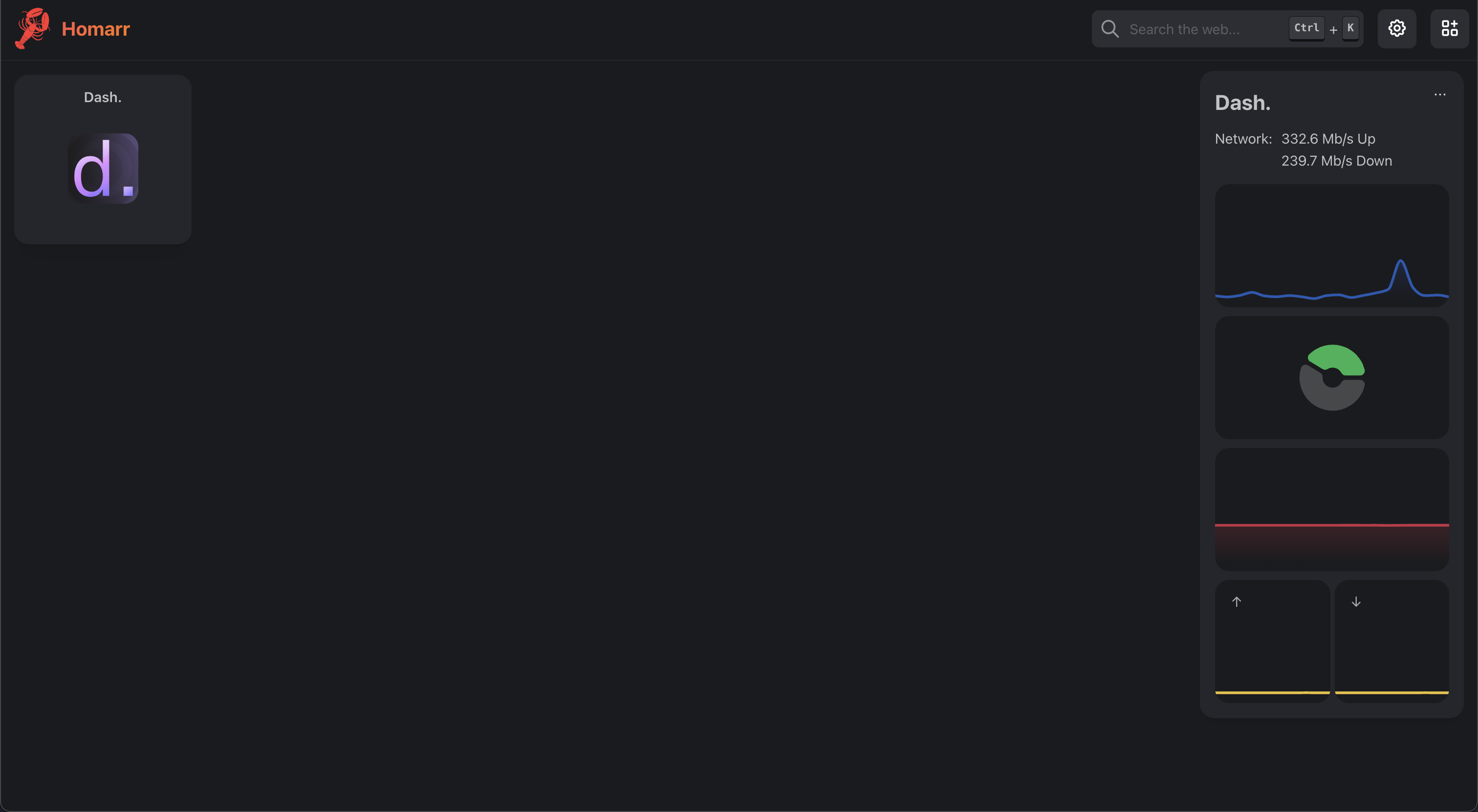
Homarr [#homarr]
Preview [#preview]
 Setup [#setup]
Website: [https://homarr.dev](https://homarr.dev)
1. Install and setup Homarr [according to the docs](https://homarr.dev/docs/getting-started/)
2. Enter the edit mode
3. Add the Dash. widget from the header menu
4. Drag your widget to your desired location on the dashboard
5. Click the three dots and edit the `Dash. URL` field to your Dash. instance.
6. Click save and exit the edit mode
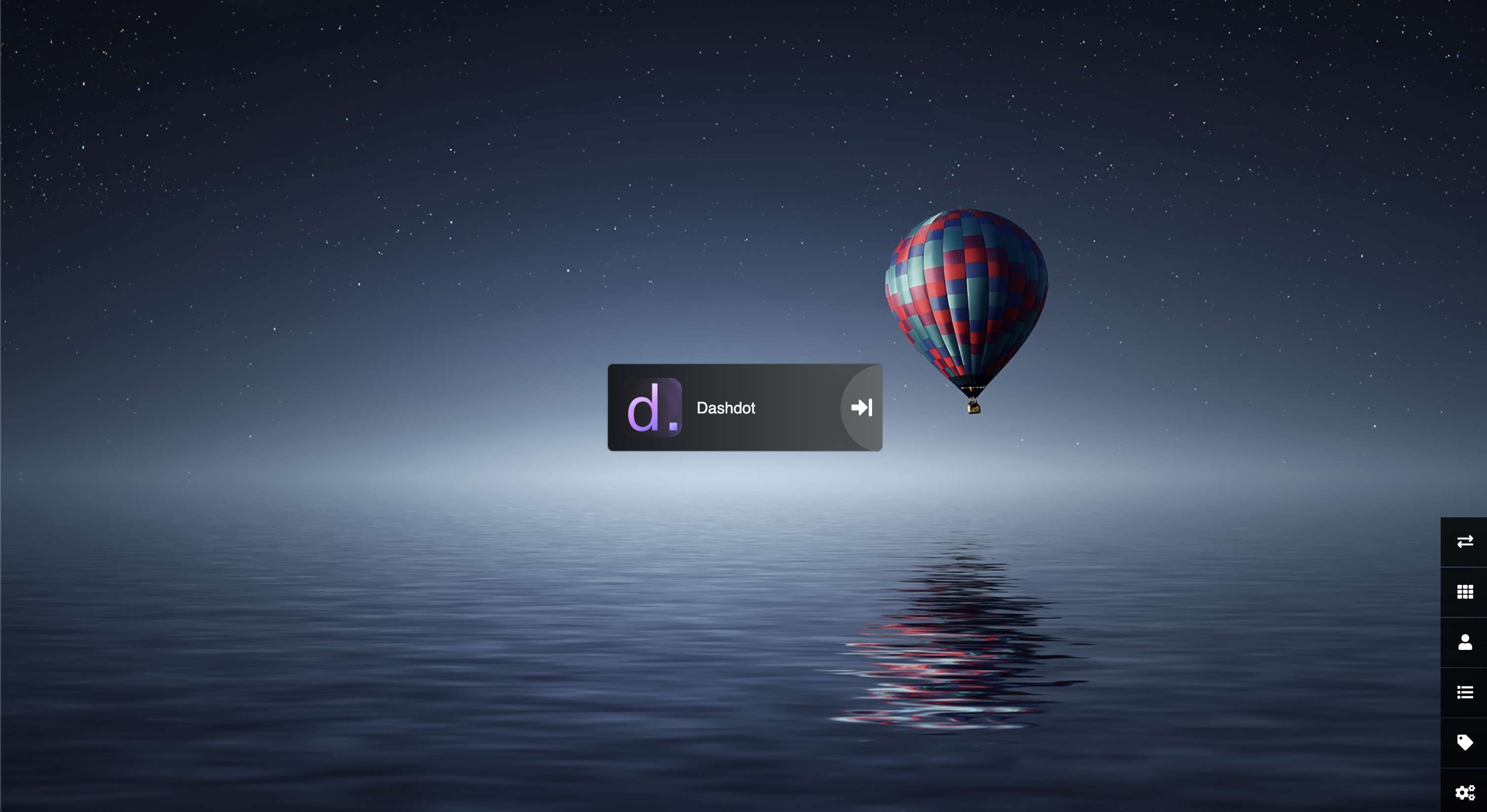
Heimdall [#heimdall]
Preview [#preview-1]
Setup [#setup]
Website: [https://homarr.dev](https://homarr.dev)
1. Install and setup Homarr [according to the docs](https://homarr.dev/docs/getting-started/)
2. Enter the edit mode
3. Add the Dash. widget from the header menu
4. Drag your widget to your desired location on the dashboard
5. Click the three dots and edit the `Dash. URL` field to your Dash. instance.
6. Click save and exit the edit mode
Heimdall [#heimdall]
Preview [#preview-1]
 Setup [#setup-1]
Website: [https://heimdall.site](https://heimdall.site)
1. Install and setup Heimdall [according to the docs](https://github.com/linuxserver/Heimdall/discussions/778)
2. Add a new service from the application list
3. Click on "Application Type" and select `Dashdot`
4. Optionally: Change the title to "Dash."
# Widgets
import { WidgetPreview } from '@/components/widget-preview';
Manual [#manual]
You can implement your running dash. instance on your websites and personal dashboards, via iframes that
can be configured using query parameters.
```html
```
Parameters [#parameters]
graph [#graph]
Select the specific graph that you want to show.
* type: `string` (`cpu`, `storage`, `ram`, `network`, `gpu`)
* required: `true`
multiView [#multiview]
For the `cpu` and `storage` widgets, there are multi-device views.
These can be shown, by passing this parameter.
* type: `boolean`
filter [#filter]
For views with multiple graphs, filter the view to just a single graph.
* type (when `graph=network`): `string` (`up`, `down`)
* type (when `graph=gpu`): `string` (`load`, `memory`)
showPercentage [#showpercentage]
Show a label with the current percentage of the graph.
* type: `boolean`
theme [#theme]
To override the theme of the graph. If this is not passed, the default theme of the users browser is used.
* type: `string` (`dark`, `light`)
color [#color]
To override the color of the graph, passed as a hex string. If this is not passed, the default color of the widget is used.
The color needs to be passed *without* the trailing `#`.
* type: `string`
surface [#surface]
To override the background color, passed as a hex string. If this is not passed, the default color of the theme is used.
The color needs to be passed *without* the trailing `#`.
* type: `string`
innerRadius [#innerradius]
This changes the `border-radius` on the graphs. This is mainly needed to add `border-radius` on views with multiple graphs,
like the network graph. If you want to add a bigger `border-radius` to the whole container, just add it to the iframe's styles.
* type: `string`
gap [#gap]
This changes the `gap` between the graphs. This is mainly needed on views with multiple graphs, like the network graph.
* type: `string`
textSize [#textsize]
This changes the `font-size` of the texts (e.g. percentage) in your graph.
* type: `string`
textOffset [#textoffset]
This changes the `margin` of the texts (e.g. percentage) in your graph.
* type: `string`
Widget Creator [#widget-creator]
Setup [#setup-1]
Website: [https://heimdall.site](https://heimdall.site)
1. Install and setup Heimdall [according to the docs](https://github.com/linuxserver/Heimdall/discussions/778)
2. Add a new service from the application list
3. Click on "Application Type" and select `Dashdot`
4. Optionally: Change the title to "Dash."
# Widgets
import { WidgetPreview } from '@/components/widget-preview';
Manual [#manual]
You can implement your running dash. instance on your websites and personal dashboards, via iframes that
can be configured using query parameters.
```html
```
Parameters [#parameters]
graph [#graph]
Select the specific graph that you want to show.
* type: `string` (`cpu`, `storage`, `ram`, `network`, `gpu`)
* required: `true`
multiView [#multiview]
For the `cpu` and `storage` widgets, there are multi-device views.
These can be shown, by passing this parameter.
* type: `boolean`
filter [#filter]
For views with multiple graphs, filter the view to just a single graph.
* type (when `graph=network`): `string` (`up`, `down`)
* type (when `graph=gpu`): `string` (`load`, `memory`)
showPercentage [#showpercentage]
Show a label with the current percentage of the graph.
* type: `boolean`
theme [#theme]
To override the theme of the graph. If this is not passed, the default theme of the users browser is used.
* type: `string` (`dark`, `light`)
color [#color]
To override the color of the graph, passed as a hex string. If this is not passed, the default color of the widget is used.
The color needs to be passed *without* the trailing `#`.
* type: `string`
surface [#surface]
To override the background color, passed as a hex string. If this is not passed, the default color of the theme is used.
The color needs to be passed *without* the trailing `#`.
* type: `string`
innerRadius [#innerradius]
This changes the `border-radius` on the graphs. This is mainly needed to add `border-radius` on views with multiple graphs,
like the network graph. If you want to add a bigger `border-radius` to the whole container, just add it to the iframe's styles.
* type: `string`
gap [#gap]
This changes the `gap` between the graphs. This is mainly needed on views with multiple graphs, like the network graph.
* type: `string`
textSize [#textsize]
This changes the `font-size` of the texts (e.g. percentage) in your graph.
* type: `string`
textOffset [#textoffset]
This changes the `margin` of the texts (e.g. percentage) in your graph.
* type: `string`
Widget Creator [#widget-creator]